WiFi & Internet at Home
Is My Home WiFi Secure? A Home Network Security Checklist
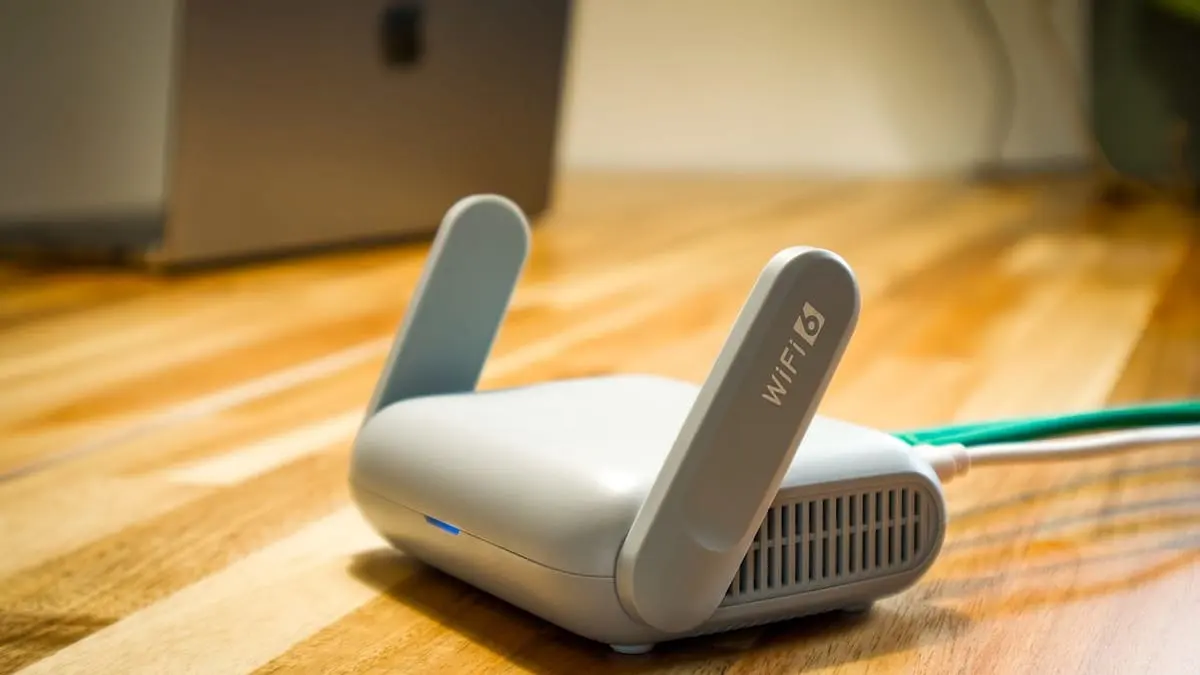
Is my home WiFi secure?
It is a good question, especially now that your wireless network probably connects much more than a laptop and a phone.
Your home WiFi may also connect TVs, cameras, doorbells, thermostats, speakers, printers, game consoles, tablets, appliances, smart plugs, garage door controllers, and other smart home devices. That makes your router one of the most important pieces of technology in the house.
The good news is that securing home WiFi does not require turning your house into a cybersecurity lab. A few smart choices make a significant difference.
1. Start with a router that still receives security updates
A router can continue “working” long after it should have been replaced. That is part of the problem.
An old router may still connect your devices to the internet while no longer receiving important firmware and security updates from its manufacturer.
Check:
- How old the router is
- Who manufactured it
- Whether the manufacturer still supports the model
- Whether firmware updates are available
- Whether updates install automatically
- Which WiFi security standards it supports
If your router is many years old and the manufacturer no longer supports it, replacing it may be the better option even if the internet technically still works.
This is similar to using an old computer that no longer receives security updates. Functioning and secure are not always the same thing.
Our WiFi and networking service can help determine whether your current equipment is still appropriate or whether a settings change can solve the problem without replacing hardware.
2. Keep your router firmware updated
Your phone gets updates. Your computer gets updates. Your router needs updates too.
Router manufacturers release firmware updates to fix bugs, improve reliability, and address security problems. Some newer routers update automatically. Others require you to log into the router and install updates manually.
If you have never checked your router for an update, it is worth finding out how your particular model handles them. Our guide to setting up a WiFi router walks through getting into those settings in the first place.
Do not download router firmware from random websites. Use the manufacturer’s official app or website.
3. Your WiFi password should be strong and unique
Your WiFi password should not be your address, your phone number, your family name, your pet’s name, password123, the router’s default password, or a password you use for other accounts.
Use a long, unique password that would be difficult for someone else to guess. Length matters more than trying to make a short password look complicated.
If remembering unique passwords is becoming difficult, our guide to password managers and safe password practices explains how to keep strong passwords organized.
4. Your WiFi password and router admin password should not be the same
This distinction is easy to miss. Your router may have at least two important passwords.
The WiFi password lets a device join your wireless network. The router administrator password lets someone change the router itself.
Those passwords should be different. If someone learns your WiFi password, that should not automatically give them access to the router’s administrative settings.
The administrator password should also be changed from the manufacturer’s default if it has not already been changed. Default router login credentials can sometimes be easily found online because manufacturers use the same defaults across many devices.
5. Use WPA2 or WPA3 security
Your router’s WiFi security settings matter. For most modern home networks, you should be using WPA2 or WPA3 encryption.
WPA3 is newer and generally preferable when your equipment supports it. WPA2 remains widely used and can still be appropriate for devices that do not support WPA3.
Older standards such as WEP should not be used.
If your router is old enough that modern security standards create compatibility problems or are not available, that is another reason to consider replacing it.
6. Create a guest WiFi network for visitors
When a friend, relative, babysitter, contractor, house sitter, or other visitor asks for your WiFi password, you do not necessarily need to put their device on the same network as everything you own.
Create a guest WiFi network. A good rule is: if someone does not live in your home, put them on the guest network.
A properly configured guest network allows someone to use your internet connection without giving their device the same level of access to your household network.
It also means you can change the guest password later without reconnecting every TV, computer, printer, and phone in your house.
7. Create a separate network for smart home devices
There is another category worth separating: smart home and Internet of Things devices.
Your cameras, plugs, light bulbs, speakers, appliances, thermostats, doorbells, and other connected gadgets do not necessarily need to live on the same network as your computers and phones.
A separate WiFi network or isolated IoT network can create another layer of separation. Your personal computers and phones can stay on your primary network.
This matters because smart devices vary widely in how long their manufacturers provide security updates. Separating them can reduce how much access one compromised or poorly secured gadget has to the rest of your network.
Our Smart Home Basics guide explains how connected devices can work together throughout the home.
8. A smart home network and a visitor network are not the same thing
You may end up with three logical groups.
One router can serve three separate groups:
Primary network, for the household:
- Computers
- Phones
- Tablets
- Printers
- Network storage
Visitor network, for anyone who does not live here:
- Friends
- Extended family
- Contractors
- House sitters
- Guests
Smart devices network, for things, not people:
- TVs and speakers
- Cameras
- Doorbells
- Thermostats
- Plugs and bulbs
The exact setup depends on your router and equipment. Some consumer routers make this easy. Others offer limited guest-network controls. More advanced home networking systems can create dedicated network segments with more precise rules.
The important part is the principle: everything in your house does not automatically need unrestricted access to everything else.
9. Do not hand out your main WiFi password by default
It is easy to treat the WiFi password like something harmless.
But your primary WiFi network connects the devices that contain some of your most personal information. That may include computers, phones, network storage, printers, cameras, backups, and smart home controllers.
Using a guest network lets you be generous with internet access without handing out the credentials to your primary network. It also makes password management easier when someone should no longer have access.
10. Turn off features you do not use
Routers often include features intended to make setup easier. Some may allow remote administration, WPS push-button pairing, UPnP, file sharing, USB storage access, or vendor cloud access.
Not every feature is inherently unsafe, but anything you do not use is another setting you do not need to expose.
In particular, remote administration should not be enabled casually. It allows router settings to be accessed from outside your home network.
If you do not know whether you need a feature, check what it does before enabling it.
11. Secure the accounts connected to your network equipment
Many newer routers use an online account or mobile app for administration. That means the security of your network may depend partly on the security of that account.
Use a unique password, multi-factor authentication when available, and current recovery information.
Do not reuse your router account password for email, banking, shopping, or other services. Our guide to multi-factor authentication explains why the second verification step matters when a password is exposed.
12. Change default passwords on smart home devices too
Your router is not the only device that matters. Connected cameras, doorbells, network storage devices, and other smart home products may also have administrative accounts.
Change default credentials when the device allows it. Do not use one password for every smart home account.
If the manufacturer offers MFA, enable it, especially on accounts connected to cameras, door locks, or other security-related devices.
13. Remove devices you no longer use
Over time, a home network can accumulate a surprisingly long list of devices. Old phones, tablets, TVs, smart plugs, cameras, game consoles, printers, and appliances may still appear in your router’s device list.
Review that list occasionally.
If you see a device you do not recognize, do not immediately assume someone hacked your WiFi. Device names are often confusing, generic, or incomplete.
But investigate it. You may discover it is an old phone, a TV, a streaming stick, a smart appliance, a visitor’s device, or a device using a privacy feature that changes its network identifier.
If something genuinely does not belong, change your WiFi password and review your router security.
14. Do not assume hiding the WiFi name makes you secure
Some people hide their network name, also called the SSID, because they believe an invisible network is a secure network.
It is not meaningful protection by itself. A determined person can still detect a hidden wireless network.
Your real security comes from strong encryption, strong passwords, current equipment, proper configuration, and sensible network separation. There is no need to make everyday WiFi unnecessarily difficult in the name of security theater.
15. Your WiFi coverage and WiFi security are connected
Security does not mean much if your network is so unreliable that you constantly create workarounds.
People sometimes add cheap extenders, old routers, and random networking equipment over the years just to reach another room. Eventually, nobody knows which device does what, which firmware is current, or which passwords belong to which piece of equipment.
A properly designed network is easier to secure because the equipment and configuration are intentional.
Prescott homes make this harder than most, and why WiFi is so bad in Prescott covers what the local housing stock does to a wireless signal. Our WiFi and networking service focuses on fixing placement and settings first, then recommending equipment only when it is actually needed.
For larger connected homes, we also offer whole-home tech setup for building the network foundation that TVs, computers, cameras, smart devices, and other technology depend on.
16. How often should you review your home WiFi security?
You do not need to inspect your router every week.
A good time to review your setup is when:
- You replace your router
- You move
- You add a lot of smart home devices
- Someone moves into or out of the household
- Your router stops receiving updates
- You have shared your primary password with many people
- You notice unfamiliar devices
- You experience unusual connection problems
- You have not looked at the settings in years
A quick review every so often is far better than setting up the router once and ignoring it for a decade.
Home WiFi security checklist
For most households, the basics look like this.
Home WiFi security checklist:
- Router still gets updates
- Firmware is current
- WPA2 or WPA3 encryption
- Long, unique WiFi password
- Different admin password
- Default credentials changed
- Guest network for visitors
- Smart devices separated
- Unique passwords per account
- MFA on where available
- Unused features turned off
- Device list reviewed
- Unsupported gear replaced
When to call TekStop
You may want professional help if:
- You do not know how old your router is
- You cannot tell whether the router still receives updates
- Your WiFi password and administrator password are the same
- You want separate guest and smart device networks
- You have many smart home devices
- You do not recognize devices on your network
- Your router settings are confusing
- Your WiFi has poor coverage or disconnects frequently
- Your network has grown through years of random additions
- You simply want someone to verify that it is configured properly
Our WiFi and networking service can help with router settings, wireless coverage, network organization, and home WiFi security throughout Prescott and the Quad Cities. Get in touch if you want someone to review your current home network and help determine what actually needs to change.
The bottom line
So, is your home WiFi secure?
If your router is current, firmware is updated, you use modern encryption, your WiFi and administrator passwords are different, guests use a separate network, and smart devices are separated where practical, you are already covering many of the biggest home-network security basics.
You do not need to make your home network complicated. You need to make intentional choices about who and what gets access.
That gives your family, computers, smart home devices, and personal information a much stronger foundation.