When Something Breaks
Gaming Console Keeps Freezing? PS5, Xbox & Switch Fixes
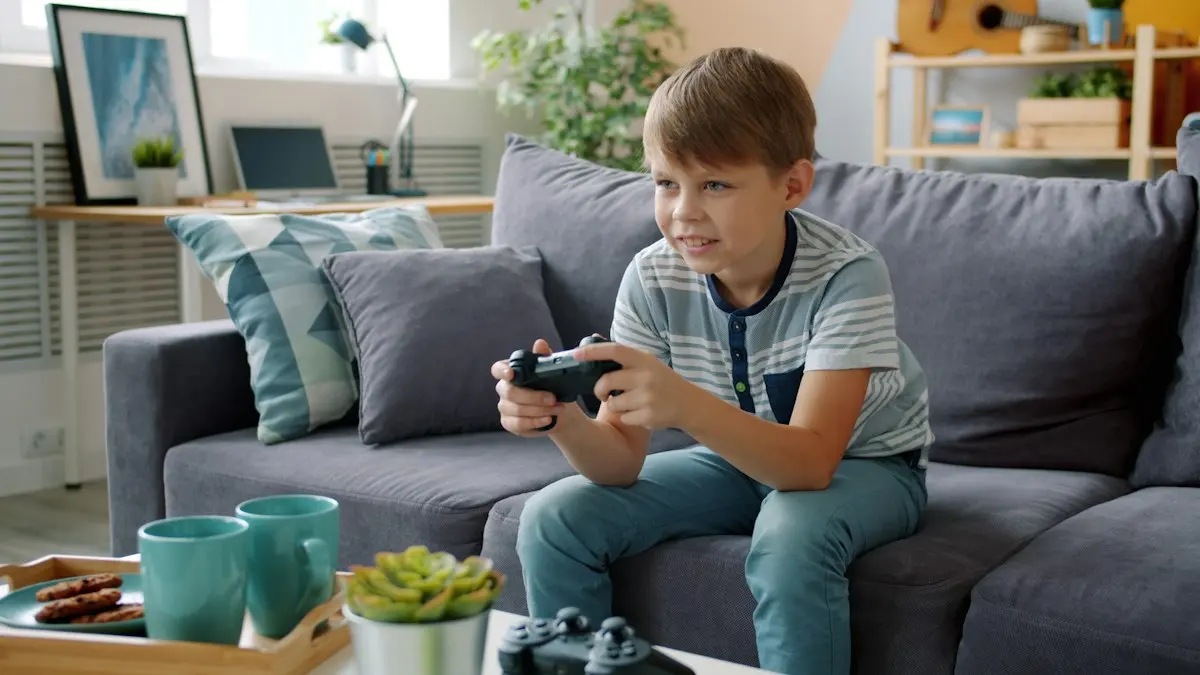
Your gaming console keeps freezing in the middle of a game. The PS5 drops back to the home screen on its own, the Xbox shuts off without warning, or the Switch stops responding to anything. Somebody in the house is upset, and the first thought is that the console is broken.
Often something simpler is going on. A pending update, a drive with nothing left on it, one damaged game install, a weak WiFi signal, an outage at the game’s own service, or a console sitting somewhere it can’t breathe. Those produce the same symptoms as failing hardware, and you can check every one tonight. Here they are in the order that finds the answer fastest, before you assume the console needs a hardware repair.
When a gaming console keeps freezing, start with a restart
Restarting sounds too simple to bother with, and it still clears a surprising number of these. Consoles are built to sit in rest, sleep or standby for weeks, waking in seconds and downloading in the background. That means the system can go a very long time without a clean start, while temporary software problems and stuck processes quietly accumulate.
Save your game, shut the console all the way down rather than putting it to sleep, then start it again and play the game that was failing. If the freezing stops, it was a temporary glitch rather than a fault.
Updates are the other thing to clear early. Sony, Microsoft and Nintendo all push system updates that fix bugs and change how a console handles the games already on it. Don’t assume automatic updates kept you current: an update can fail, get interrupted, or sit waiting because the console never had a stable enough connection to finish. Install anything pending, restart, and test again.
Before you change anything, notice when it happens
The quickest way through this is to notice when the problem shows up. One game or all of them. Online or offline. Right after an update. Right after you plugged something new in. Hours into a long session. Each points somewhere different, and knowing which you have saves working through checks that were never going to apply.
What the freezing points at:
- Only one game freezes: look at that game, its update or its install.
- Several games freeze: look at the console, its storage or its system software.
- Only online play fails: look at your internet or the game’s service.
- It shuts down after hours of play: look at heat and airflow.
- It started right after an update: look at that update.
- It started after you plugged something in: look at that accessory.
Find the line that matches what you’re seeing, then go straight to that section.
An error code on screen is the other free clue, and it is worth as much as the timing. Write it down or photograph it, then search that exact code on the manufacturer’s official support site instead of something broad like “PS5 keeps freezing”. A code usually narrows the problem to one area: system software, a single game, the connection, your account, an update, storage, or the online service. That is a far better search than a general one.
One rule holds through everything below. Change one thing, then test. If you change ten things at once and the freezing stops, you’ve learned nothing about which one mattered.
Is it one game, or every game?
If one game freezes and everything else runs normally, look at the game first. Start with a game update, because developers patch crashes constantly and the fix for a game that locks up at the same spot is often already published.
If the game is current and still fails, the installation may be damaged. A game that crashes at the same point every time, refuses to load, or started misbehaving right after an interrupted update is worth uninstalling and reinstalling. Protect your save data first. Saves work differently depending on the console and the game: some sit separately from the game files, some sync to cloud storage, some do neither, so find out where yours live before you remove anything.
When several unrelated games freeze, the game is no longer the common factor, and storage is the part most people skip. Modern games are enormous once updates, downloadable content, recorded clips and screenshots stack up, and a console very low on free space can struggle to install updates and manage game data. That can surface as freezing rather than as an obvious complaint about space.
Check what’s actually free. The usual culprits are games nobody has opened in months, old installations, recorded gameplay, screenshots, expansions and apps you stopped using. Delete what you’re sure about. Anything bought digitally can generally be downloaded again through the account that owns it, as long as the saves are backed up first.
Is it the console, or your internet?
A bad connection impersonates a broken console convincingly. Your character locks up. The game stops responding. You get dropped from a match. All of that happens on consoles in perfect health, so the tell is whether it only happens online. If single-player games run fine and the trouble starts when you connect, your network and the game’s service are the places to look.
Check whether anything else in the house is struggling too. Run the console’s built-in network test, restart the modem and router, and notice whether streaming apps on the console buffer too. Then try a different online game: if that one plays fine, the trouble belongs to the first game’s servers rather than to your connection. Our guide on how to tell whether your internet connection is working separates a provider outage from a problem inside your own house.
If the rest of the house is fine and only the console struggles, where it sits is the likely reason. WiFi weakens the further it travels, and consoles tend to live in the room furthest from the router. Run the quick WiFi fixes first. Prescott homes have their own version of this, because old plaster walls and long lots work against a signal, which we covered in why WiFi struggles in Prescott houses. An unreliable signal throughout the house rather than in one room is a coverage problem, and it’s what our WiFi and networking work is for.
Not every outage is inside your house. Online play depends on servers run by the game’s publisher and by the console’s own network, and when those are down you’ll see disconnects, login failures and matchmaking that never completes. Check the official status pages for PlayStation Network, Xbox network services, Nintendo’s online services and the game itself before you change a setting. If other players are reporting the same thing, nothing you do to your console will help.
Does it shut down after a long session?
Heat can shut a console down, and on its own that doesn’t mean anything inside has failed. A console that gets too hot slows itself down or powers off to protect itself. The pattern that points here is a console that behaves for a while and then quits, usually during long sessions or demanding games. Start with where it sits.
Give the console open space around it and keep its vents uncovered. Places it can’t breathe:
- Inside a closed cabinet
- Hard against a wall
- On carpet or bedding
- Behind other hot electronics
- Anywhere its vents are covered
The rule underneath all of that is open space around the console and vents left clear, and a Switch dock needs the same consideration. Move it, play the same game for as long, and see whether the shutdown comes back.
Don’t open the console. Improving the airflow and testing again costs you nothing, and anything past that point is a hardware job rather than a troubleshooting step.
What else is plugged into it?
Sometimes the trouble arrives through something attached to the console. USB storage, external drives, headsets, USB hubs, charging accessories and third-party controllers can all destabilize a console that’s otherwise healthy.
If the freezing started after you connected something new, unplug it and test. If nobody can remember what changed, strip it back to a controller and the cables it needs, then add things back one at a time. A console that behaves perfectly without one accessory has told you where to look.
External storage deserves its own test, because PlayStation and Xbox use external drives in different ways. If a game on an external drive freezes, fails to launch or behaves inconsistently, try one installed on the console itself and compare. A problem that only affects games on the drive points somewhere very different from a console-wide fault. Don’t format a drive that holds data you need. Disconnect it the way the manufacturer tells you to instead.
Settings that look like a fault
Not every unexpected shutdown is a crash. Every one of these consoles has sleep, rest, standby and power-saving settings, switched on in various combinations out of the box. If your console turns itself off after about the same amount of time every session, that regularity points at an automatic shutdown timer.
Then there’s the television. TVs and consoles talk to each other over HDMI and turn one another on or off depending on how each is configured. If the TV goes off and the console follows immediately, that may be the two doing precisely what they were set up to do. Getting a TV, console, soundbar and streaming box to behave sensibly together is ordinary whole-home tech setup work.
Rest mode is worth its own test. If the freezing only appears after you wake the console and never after a cold start, you’ve found a clue and a workaround in the same move: shut it down fully instead of using rest mode. That keeps the console usable tonight, and tells whoever looks at it next something real.
When to stop, and what we can help with
Here’s the whole run in the order worth trying it, one step at a time, ending where it’s reasonable to stop.
Work through these in order, testing after each change:
- Restart the console fully
- Install system updates
- Update the game
- Reinstall the game
- Check free storage
- Test the internet
- Check service status
- Improve the airflow
- Remove accessories
- Test without external storage
- Review power settings
If you’ve worked through all of that and the console still freezes, stop resetting and deleting. Changes made without a clear idea of what they’re meant to fix create new problems and make the original fault harder to identify.
Here’s where we fit, and where we don’t. TekStop doesn’t do hardware repair on consoles. We don’t open them and we don’t replace parts. What we do is work out which side of the problem you’re on, and fix the side that lives in your house.
That covers a lot of what sends people looking for console repair. A PS5 that keeps dropping off WiFi. A Switch that’s unreliable online. Console updates that fail over and over. Several gaming and streaming devices misbehaving at once. Those are network and configuration problems, and they’re ours.
If it turns out to be the console itself, we’ll tell you plainly and point you at the manufacturer or a repair shop that works on consoles. Our Prescott service center opens on 1 November and takes computers, not consoles, so that isn’t us either.
Much of the network side we handle without coming out, since the router is the part we need to reach, and remote support has a 30-minute minimum. On-site visits across Prescott, Prescott Valley, Chino Valley and Dewey-Humboldt in Arizona’s Quad Cities carry no trip fee and no diagnostic fee. The current rates are on the site.
Call us at (928) 583-4454 and tell us what you’ve tried and when the freezing happens. That’s usually enough for us to say on the phone whether this is our job or one for the manufacturer. If we’re out on a call, the contact form gets you the same answer by email.