Staying Safe Online
What to Do When You Get a Scary Pop-Up on Your Computer
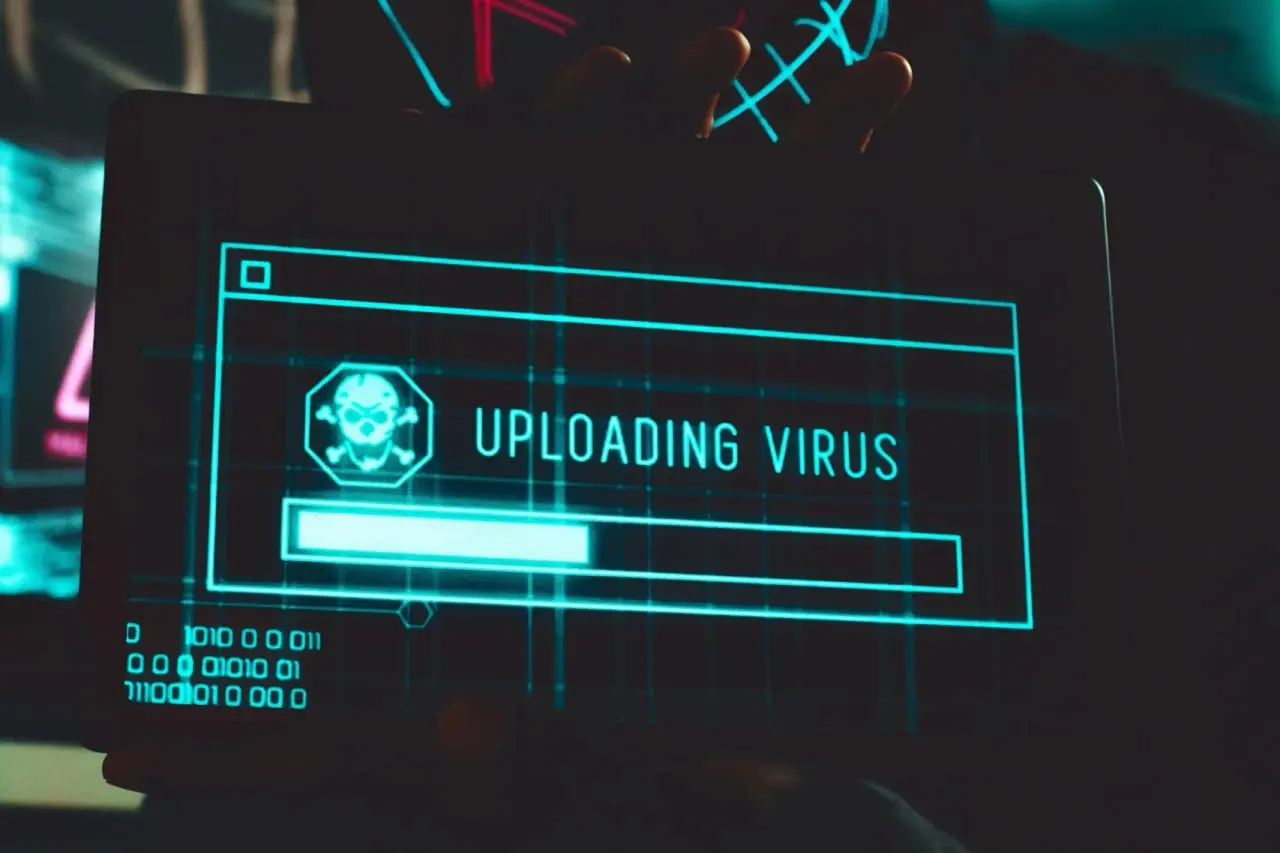
A scary pop-up on your computer can make your stomach drop fast. One minute you are checking email, shopping online, reading the news, or browsing Facebook. The next minute, a loud warning appears saying your computer is infected, your data is at risk, your account has been locked, or you need to call support immediately.
These pop-ups are designed to create panic.
The most important thing to know is this: do not call the phone number, do not click the button, and do not download anything from the pop-up.
Many scary computer pop-ups are fake security alerts. They are often created by scammers who want to trick you into giving them money, personal information, remote access to your computer, or access to your accounts.
Here is what to do if a scary pop-up appears on your computer.
1. Do Not Click Anything on the Pop-Up
The first step is simple: do not interact with the pop-up.
Do not click:
- “Call now”
- “Remove virus”
- “Scan computer”
- “Renew protection”
- “Download cleaner”
- “Fix now”
- “Continue”
- “Allow”
- “OK”
- “Close” inside the pop-up
- Any phone number or chat box
Even the button that looks like a normal close button may be part of the scam. Some fake pop-ups are built so that clicking anywhere on the warning keeps the scam going.
If the message is aggressive, urgent, loud, or threatening, that is another reason not to click it.
2. Do Not Call the Number on the Screen
A common fake virus warning will tell you to call a phone number right away. It may claim to be from Microsoft, Apple, Google, Norton, McAfee, your bank, or your internet provider.
Do not call that number.
Legitimate companies do not usually lock your browser and demand that you call a random phone number from a pop-up. Scammers use these numbers to get you on the phone while you are scared. Once you call, they may try to convince you to:
- Pay for fake tech support
- Give them remote access to your computer
- Share passwords or security codes
- Buy gift cards
- Install unsafe software
- Log in to your bank account
- Give them credit card information
- Pay for unnecessary “protection”
If you already called the number, stop the conversation immediately. Do not follow any more instructions from them.
3. Do Not Let Anyone Remotely Access Your Computer
Remote support can be helpful when it comes from a trusted company you contacted directly. It is dangerous when a stranger from a pop-up tells you to install a remote access app.
Scammers may ask you to install software such as remote desktop tools, screen sharing apps, or “support” programs. Once installed, they may be able to see your screen, control your mouse, open files, access accounts, or guide you into making payments.
Do not give remote access to anyone who contacted you through a pop-up, fake warning, unsolicited phone call, or suspicious email.
If someone already gained remote access to your computer, disconnect from the internet right away and contact a trusted tech support provider. TekStop offers remote support for many computer issues when the device can still turn on and connect to the internet.
4. Try Closing the Browser Safely
If the scary pop-up is inside your browser, try closing the browser without clicking the pop-up itself.
On Windows, you can try:
- Press Alt + F4
- Right-click the browser icon on the taskbar and choose “Close window”
- Press Ctrl + Shift + Esc to open Task Manager, select the browser, and choose “End task”
On Mac, you can try:
- Press Command + Q
- Right-click the browser icon in the Dock and choose “Quit”
- Press Option + Command + Esc, select the browser, and choose “Force Quit”
If the browser closes, do not immediately restore all tabs when you reopen it. If your browser asks whether you want to restore pages, choose no if possible. Restoring the same pages may bring the scary pop-up right back.
5. Restart Your Computer
After closing the browser, restart your computer.
Do not just close the laptop lid. Do not only put it to sleep. Choose the restart option from the menu.
A restart can clear stuck browser windows, stop temporary processes, and give you a clean starting point.
After the restart, open your browser carefully. If it asks to restore previous tabs, decline that option. Then go directly to a trusted website and see whether the pop-up returns.
If the computer is still slow, freezing, or difficult to use after restarting, the issue may go beyond the pop-up. TekStop has a guide on how to fix a slow computer that covers common causes like too many open apps, outdated software, malware, storage problems, and aging hardware.
6. Check Browser Notifications
Some scary pop-ups are not actually viruses. They may be browser notifications from a website you accidentally allowed.
This often happens when a website asks for permission to “show notifications,” and the user clicks allow without realizing what that means. After that, the site can send pop-up-style messages that look like security alerts.
These fake alerts may say things like:
- Your computer is infected
- Your antivirus expired
- Your data is at risk
- Click here to remove threats
- Your subscription needs renewal
- Your system is damaged
- Call support immediately
To fix this, check your browser notification settings and remove permission for websites you do not recognize.
Look especially for strange website names, misspellings, random domains, or sites you do not remember visiting.
If the pop-ups are happening mainly inside your browser, there may also be an issue with extensions, cache, cookies, or browser settings.
7. Watch for Fake Virus Warnings
Fake virus warnings are meant to look official. They may use logos, warning symbols, countdown timers, flashing colors, or loud sounds.
Some may claim to be from:
- Microsoft
- Apple
- Windows Defender
- Norton
- McAfee
- Your internet provider
- Your bank
- A government agency
A fake warning may say your files will be deleted, your identity is being stolen, your device is blocked, or your account will be closed unless you act immediately.
That urgency is the trick.
Real security software may alert you to a problem, but it should not pressure you to call a random number from your browser. It also should not ask for gift cards, wire transfers, banking access, or remote access from an unknown person.
8. Run a Scan With Trusted Security Software
After you close the pop-up and restart the computer, run a scan with trusted antivirus or antimalware software.
Make sure you are using a real security program that is already installed or downloaded from the official company website. Do not download a scanner from the scary pop-up itself.
Run a full scan if available. If the scan finds threats, follow the cleanup steps.
If the scan finds nothing but the pop-up keeps coming back, the issue may be browser notifications, a bad extension, cached website data, or unwanted software that needs deeper cleanup.
TekStop can also help with virus removal if you suspect malware, fake security alerts, browser redirects, unwanted software, or suspicious activity on your computer.
9. Check Browser Extensions
A suspicious browser extension can cause pop-ups, redirects, fake ads, tracking, search changes, and slow browsing.
Review your browser extensions and remove anything you do not recognize or no longer use.
Be especially careful with extensions that claim to provide:
- Coupons
- Price tracking
- Free downloads
- Search tools
- Weather alerts
- Map tools
- PDF conversion
- Fake ad blocking
- Browser cleanup
- Speed boosting
- Shopping rewards
- Video downloads
Some extensions are legitimate, but many unwanted ones are designed to collect data, inject ads, or redirect your browser.
If you did not intentionally install it, do not keep it.
10. Clear Cache, Cookies, and Site Data
If the warning appeared on a specific website, clearing your browser data may help.
You can clear:
- Cached images and files
- Cookies
- Site data
- Browsing history
- Saved permissions
- Notification permissions
Before clearing cookies, make sure you know your important passwords or have them saved in a password manager. Clearing cookies may sign you out of websites.
If you do not already use one, TekStop’s guide on password managers and safe password practices explains how a password manager can help you safely store passwords, create stronger logins, and avoid getting locked out of important accounts.
After clearing browser data, close the browser, restart the computer, and test again.
11. Do Not Enter Passwords After a Suspicious Pop-Up
If you see a scary pop-up, avoid logging in to sensitive accounts until you know what happened.
This includes:
- Banking
- Medical portals
- Shopping accounts
- Password managers
- Cloud storage
- Social media
- Business accounts
If the pop-up came from a malicious website, fake extension, or unwanted software, you do not want to risk entering passwords while something suspicious is active.
If you already entered passwords after the pop-up appeared, change those passwords from a clean, trusted device if possible. Start with your email account, banking accounts, and any account that uses the same password.
You should also turn on multi-factor authentication for important accounts. TekStop’s guide on multi-factor authentication explains how MFA adds another layer of protection if your password is ever exposed.
12. What If You Already Clicked Something?
If you clicked the pop-up, downloaded something, called the number, or gave someone access, take it seriously.
Here is what to do next:
- Disconnect from the internet
- Stop communicating with the person or company from the pop-up
- Do not make any more payments
- Do not give any more passwords or codes
- Run a trusted malware scan
- Change important passwords from a safe device
- Contact your bank or credit card company if you shared payment information
- Contact trusted tech support to inspect the computer
If you gave someone remote access, the computer should be checked carefully. The person may have installed software, changed settings, viewed files, or accessed accounts.
You can contact TekStop if you need help checking the computer and figuring out what to do next.
13. What If You Paid the Scammer?
If you paid someone from a fake pop-up, contact your bank or credit card company immediately.
Tell them you believe you were tricked by a tech support scam. Ask whether the transaction can be stopped, disputed, or reversed.
If you paid with a gift card, cryptocurrency, wire transfer, payment app, or bank transfer, recovery may be harder. Still report it as soon as possible.
You should also change passwords for important accounts, especially if the scammer saw your screen or accessed your computer.
14. How to Prevent Scary Pop-Ups in the Future
You cannot prevent every bad website from existing, but you can reduce your risk.
Start with these steps:
- Keep your browser updated
- Keep your computer updated
- Use trusted security software
- Remove browser extensions you do not need
- Avoid clicking suspicious ads
- Be careful with free download sites
- Do not allow browser notifications from random websites
- Do not install “cleaner” or “speed booster” tools from pop-ups
- Use a password manager
- Enable MFA on important accounts
- Back up important files
Most importantly, slow down when something tries to scare you into immediate action. Scammers rely on panic.
If your browser is slow, your internet feels unreliable, or websites are taking forever to load, the scary pop-up may not be the only issue. TekStop has a helpful guide on how to tell if your internet connection is working if you need to rule out internet problems.
15. When to Call TekStop
Call TekStop if the pop-up keeps coming back, if you clicked something, if you gave remote access, or if you are not sure whether the warning was real.
TekStop can help check for:
- Malware
- Suspicious browser extensions
- Fake notification permissions
- Unwanted software
- Browser redirects
- Slow browser issues
- Remote access software
- Security settings
- Account safety concerns
In many cases, support can be handled remotely if your computer still turns on and connects to the internet. You can learn more about TekStop’s remote support or contact TekStop for help.
You should also consider calling TekStop if your computer is older, slow outside the browser, or becoming unreliable. If the device is reaching the end of its useful life, TekStop’s article on when to replace your computer can help you understand when repair may no longer be the best option.
The Bottom Line
If you get a scary pop-up on your computer, do not click it, do not call the number, and do not download anything from the warning.
Close the browser safely, restart your computer, check browser notifications, review extensions, clear browser data, and run a trusted security scan.
If you clicked something, called the number, paid money, or allowed remote access, get help right away.
Scary pop-ups are designed to make you panic. TekStop can help you slow down, check the computer safely, and protect your accounts before the problem gets worse.
Contact TekStop today if you need help with a scary pop-up, fake virus warning, suspicious browser behavior, or computer security issue.